
How to use Memo Reminders
Create your first reminder, choose when it appears, then decide what to do when it is time.
Write a reminder
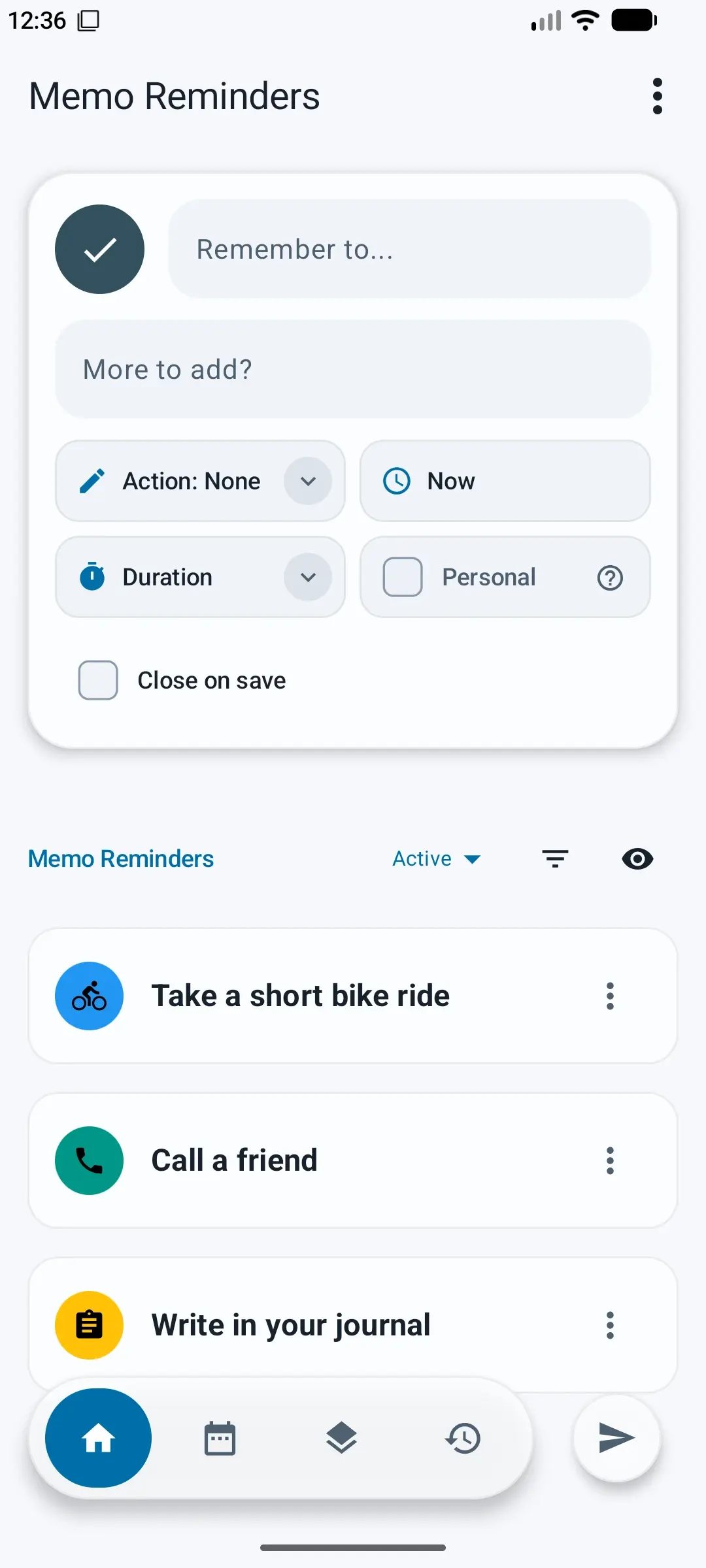
Open Home and type what you want to remember in Remember to.... A title is required. Add a note if it helps, then tap the save button.
You can also choose an icon, set a time, or add an action before you save.
Choose when it appears
Show it now or later
Leave the time as Now for an immediate reminder. Tap Now to choose a suggested time or pick a future date and time.
Repeat when needed
After choosing a future time, set it to repeat daily, weekly, or monthly. For a weekly reminder, choose the days you want.
Set the alert duration
Duration controls how long the notification stays visible. It does not change how often a reminder repeats. The reminder stays in the app after its notification ends.
Choose what happens next
Add an action
Choose Action if you want the reminder to open a call, text message, email, directions, or a website. Enter the details the app asks for.
Respond to the notification
If no action is set, tapping the notification opens the reminder editor. If you chose an action, tapping it opens an Android app that can handle it and clears the current alert.
If Android cannot find an app for the action, the notification stays so you can try again.
Manage and reuse reminders
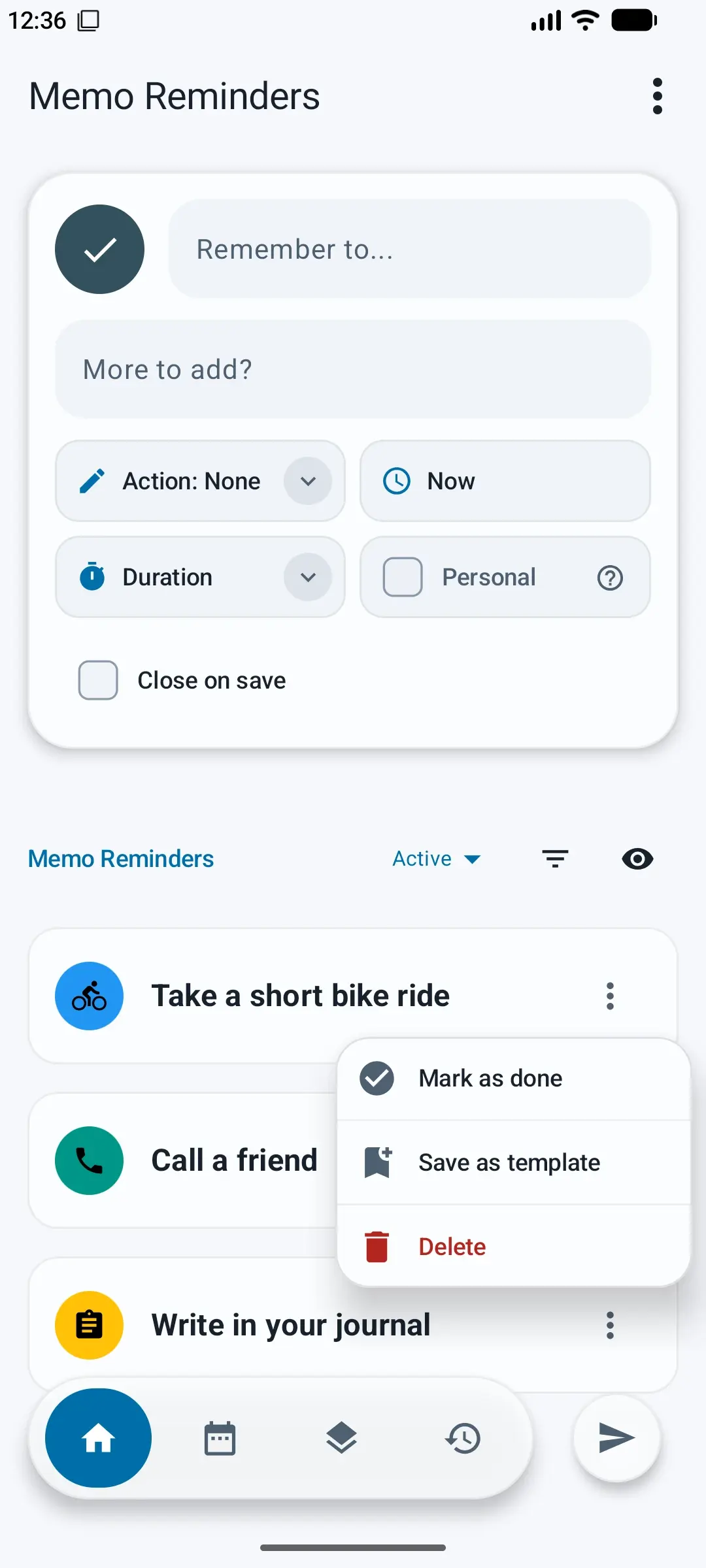
Open a reminder's More menu to mark it as done, save it as a template, or delete it. Finished reminders appear in History, where you can restore them.
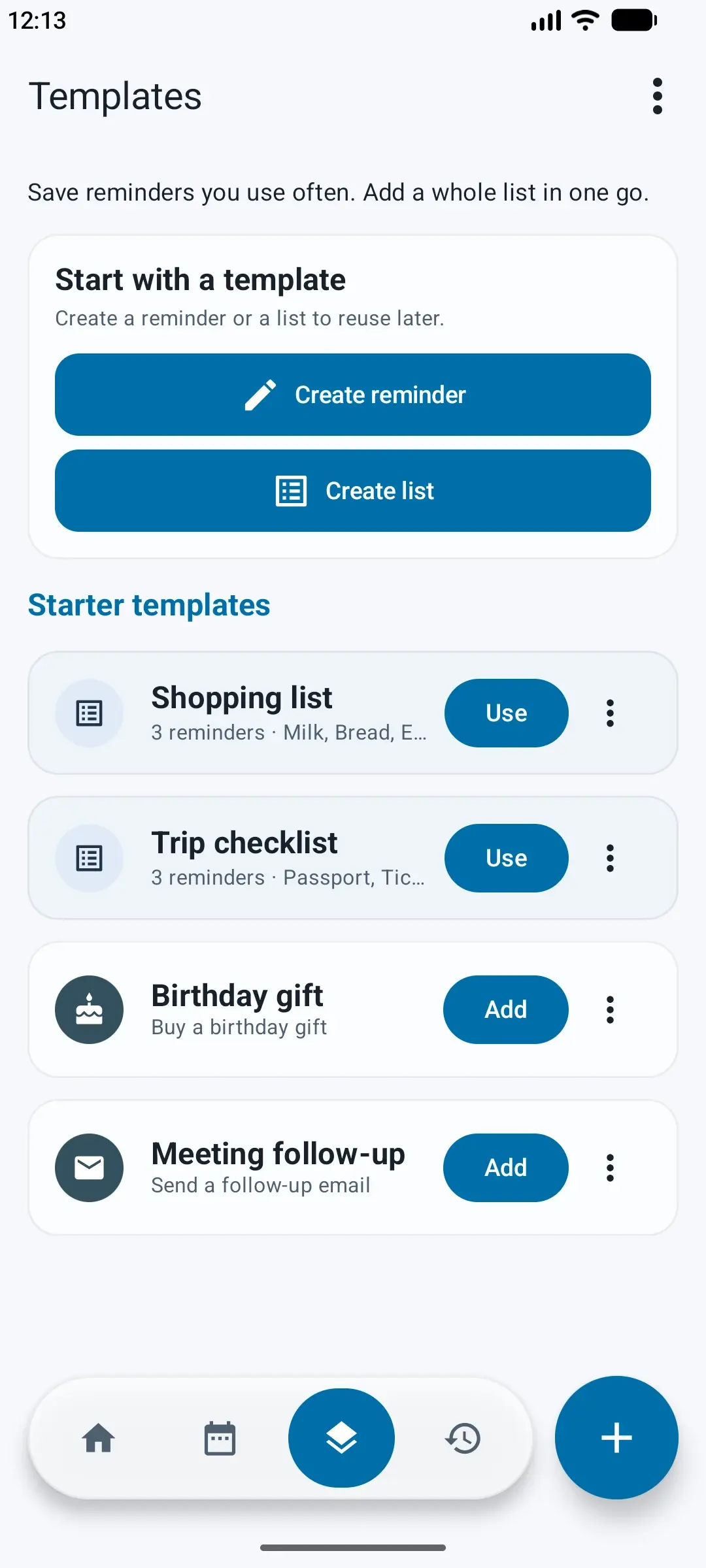
Open Templates to reuse a starter or create your own reminder or list. Tap Add on a reminder template. Tap Use on a list to choose which reminders to add.
Ready to get started?
Download Memo Reminders for Android. If you have a question, contact support.
Learn more about Memo Reminders.